Recently I've moved, and after that I have changed my registration information
and store address into the new one.
On order confirmations however, the macro tag still results in
showing the old address. Strange thing: the invoice shows the correct one...
How / where can I change that? On the template pages, it's only mentioned
that Store Address is to be maintained in the Registration Information (where
it is correct).
Recently I've moved, and after that I have changed my registration information
and store address into the new one.
On order confirmations however, the macro tag still results in
showing the old address. Strange thing: the invoice shows the correct one...
How / where can I change that? On the template pages, it's only mentioned
that Store Address is to be maintained in the Registration Information (where
it is correct).
Thanks in advance for helping me out.
Regards
Peter van der Heyden.
there are 2 location where your address is saved.
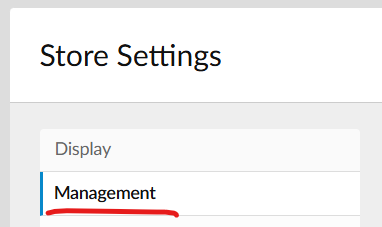
Under the management tab in your store settings (picture 1)
and Account info on the My Bricklink page (Picture 2)


 Netherlands, Noord-Brabant


 Canada, Alberta
)
)